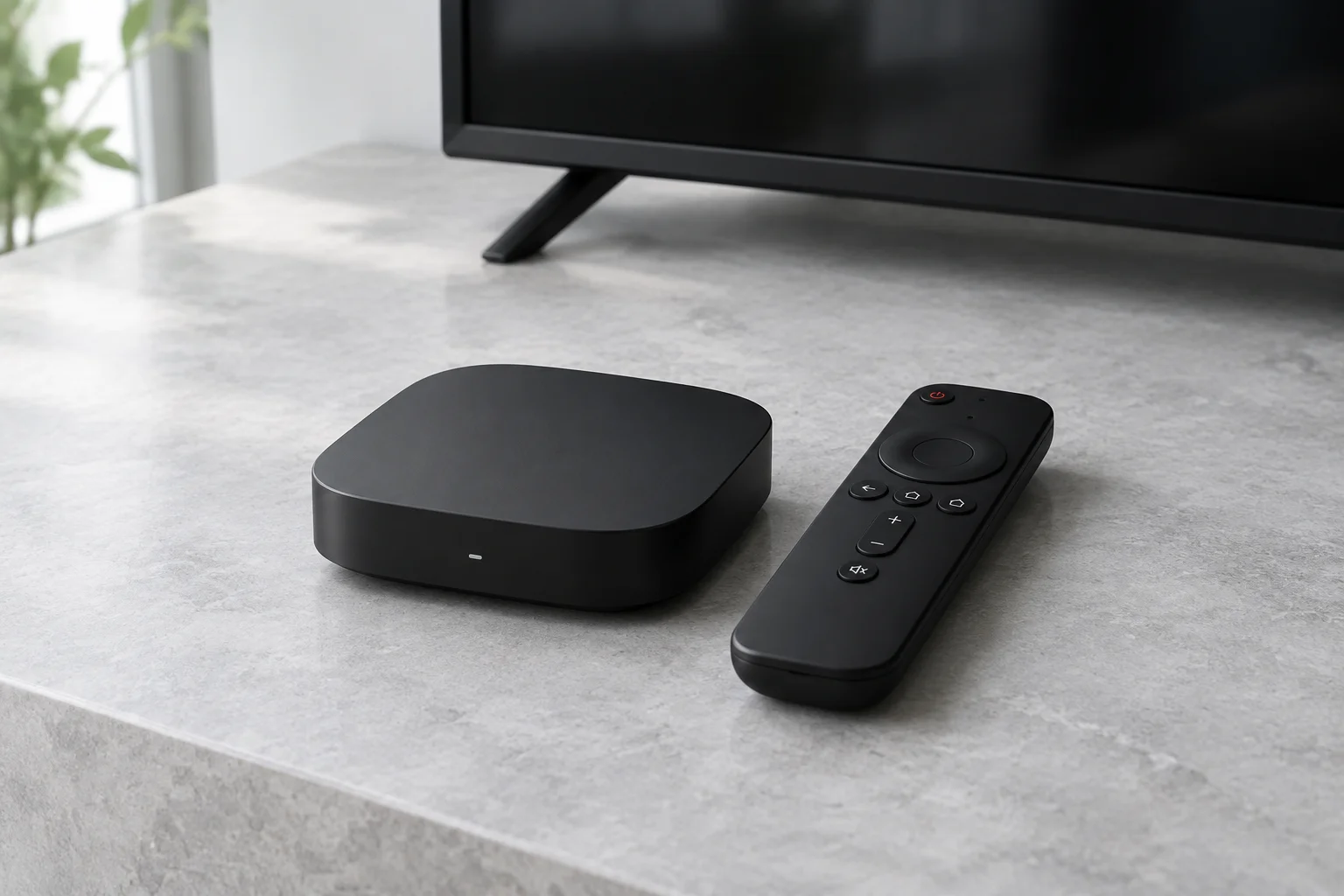
1. Confirm the required setup type
Find your exact MAG model and firmware version. Ask your provider whether the account uses a portal setup and whether your box is supported. Do not proceed using Android app instructions for a portal-based model.
2. Connect and check device settings
Connect the box to the television and network using the manufacturer’s instructions. Confirm it has network access and that date and time settings are sensible. Make a private record of the existing configuration before changing portal values.
3. Obtain the authorised portal details
Ask the identified provider for the correct portal address and any device-registration requirements. Use a private channel if sharing a device identifier. Do not use random public portals or another customer’s account; neither establishes viewing permission.
4. Configure using the model documentation
Locate the portal or server configuration section described in your model’s manual. Enter the supplied address exactly and save it. Restart or reload only as directed by that documentation. Menu labels differ, so this guide deliberately does not invent a universal menu path.
5. Verify activation and playback
Allow the portal to load and test an entitled programme. If the portal is unavailable, recheck the address, network and provider registration. For playback failures, record the model, firmware and error text. Do not install unofficial firmware or factory-reset the box before the provider has checked activation.