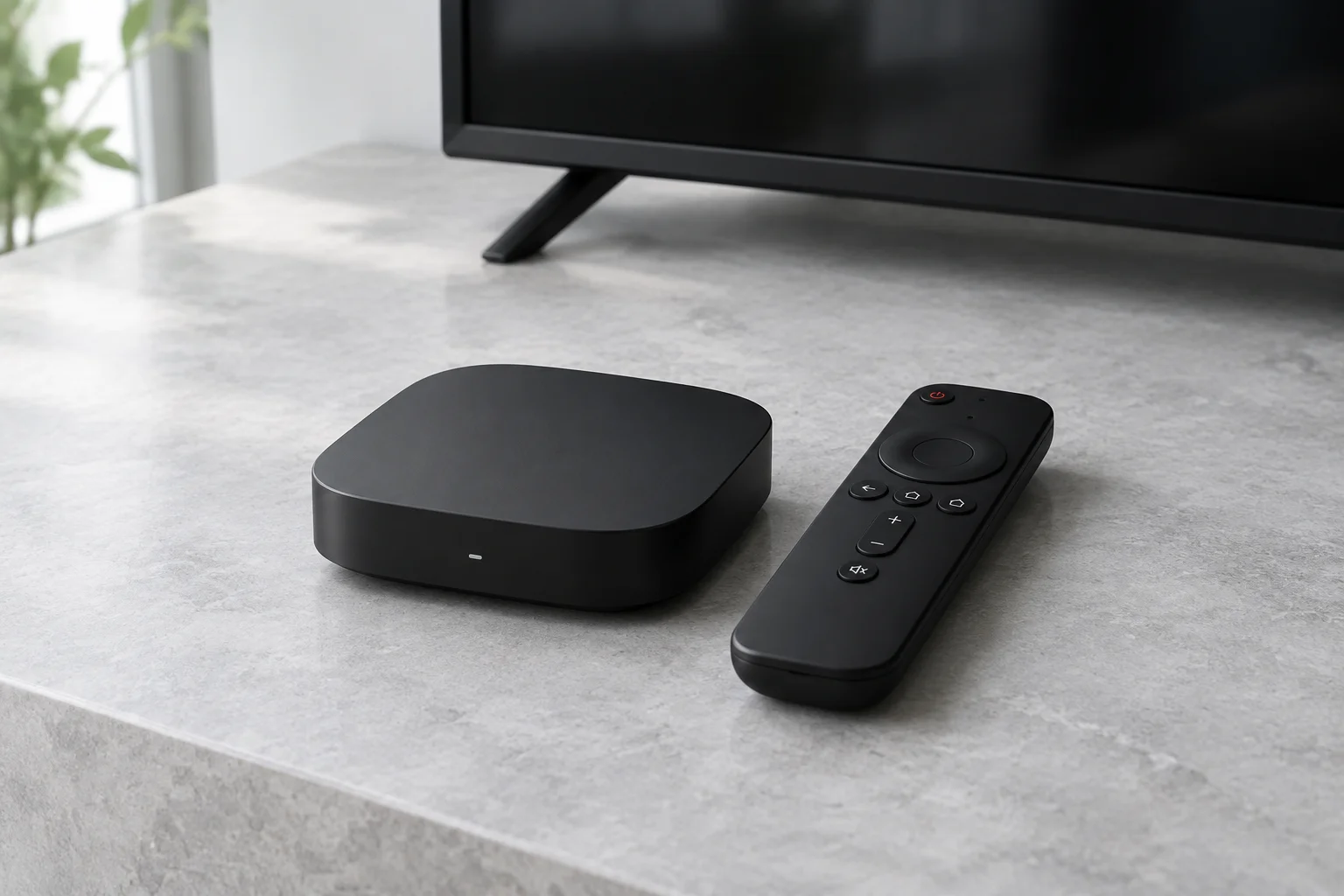
1. Confirm your model and connection
Open device settings and note the Fire TV model and operating system. Check Amazon’s model table if you are unsure. Connect to your usual home network and confirm the device can open another legitimate streaming app before changing anything.
2. Find a supported player in the store
Use the on-device app search. Match the developer to the publisher’s documentation and check the supported login formats. If the player is absent, stop and verify compatibility instead of using an arbitrary APK or Downloader code. This guide does not assume sideloading is available on every model.
3. Install and choose the login format
Install the identified app through its trusted store listing. Open it and choose the format supported by both the app and your authorised provider. Enter the server address and credentials exactly, or add the supplied playlist URL. Menus vary by player; do not force a portal URL into an M3U field.
4. Test playback and the guide
Let the initial playlist update complete, then open one entitled programme. Add any separate EPG address in the relevant app settings and check the time zone. If activation or login fails, ask the provider to verify the account and connection limit.
5. Resolve errors without changing everything
For an empty playlist, recheck the address and access terms. For buffering, compare a lower-quality stream and another authorised service on the same device. Note the app version and error text for support, leaving passwords out of screenshots.
Sources and further reading
Official references for the guidance above. App availability and terms may change.